브라우저 비밀번호를 CSV로 내보내 Modora에 옮기기
크롬·엣지·사파리에 저장해 둔 비밀번호를 CSV 파일로 내보낸 뒤, Modora의 CSV 일괄 등록으로 한 번에 옮기는 방법입니다. 브라우저 동기화 계정에 비밀번호를 남겨두고 싶지 않을 때 유용합니다.
1. 브라우저에서 비밀번호 내보내기
Chrome
- 주소창에
chrome://password-manager/settings입력 (또는 설정 → 자동 완성 → Google 비밀번호 관리자 → 설정) - 비밀번호 내보내기 클릭 → 기기 비밀번호 확인 → CSV 저장
Edge
- 설정 → 프로필 → 비밀번호(또는 Microsoft Wallet) → 설정
- 비밀번호 내보내기 클릭 → CSV 저장
Safari (macOS)
- Safari 메뉴 → 설정 → 암호 (또는 시스템 설정 → 암호)
- 목록 하단 ⋯ → 모든 암호 내보내기 → CSV 저장
2. Modora CSV 형식으로 정리
엑셀·스프레드시트에서 브라우저 CSV의 열을 Modora 형식에 맞게 재배치합니다. 첫 줄은 머리글, 둘째 줄부터 데이터입니다.
| Modora 열 | 넣을 내용 | 브라우저 CSV의 해당 열 |
|---|---|---|
| 제목 (title) | 사이트 이름 | name |
| 내용 (contents) | URL·아이디 등 메모 | url, username |
| 비밀번호 (pw) | 비밀번호 | password |
| 날짜·연도·종류·양력/음력 | (선택) 일정용 — 비워도 됨 | — |
파일은 UTF-8로 저장하세요(엑셀은 "CSV UTF-8" 형식). 정확한 형식은 Modora 설정 → CSV 일괄 등록 → CSV 샘플 받기로 예시 파일을 내려받아 확인할 수 있습니다.
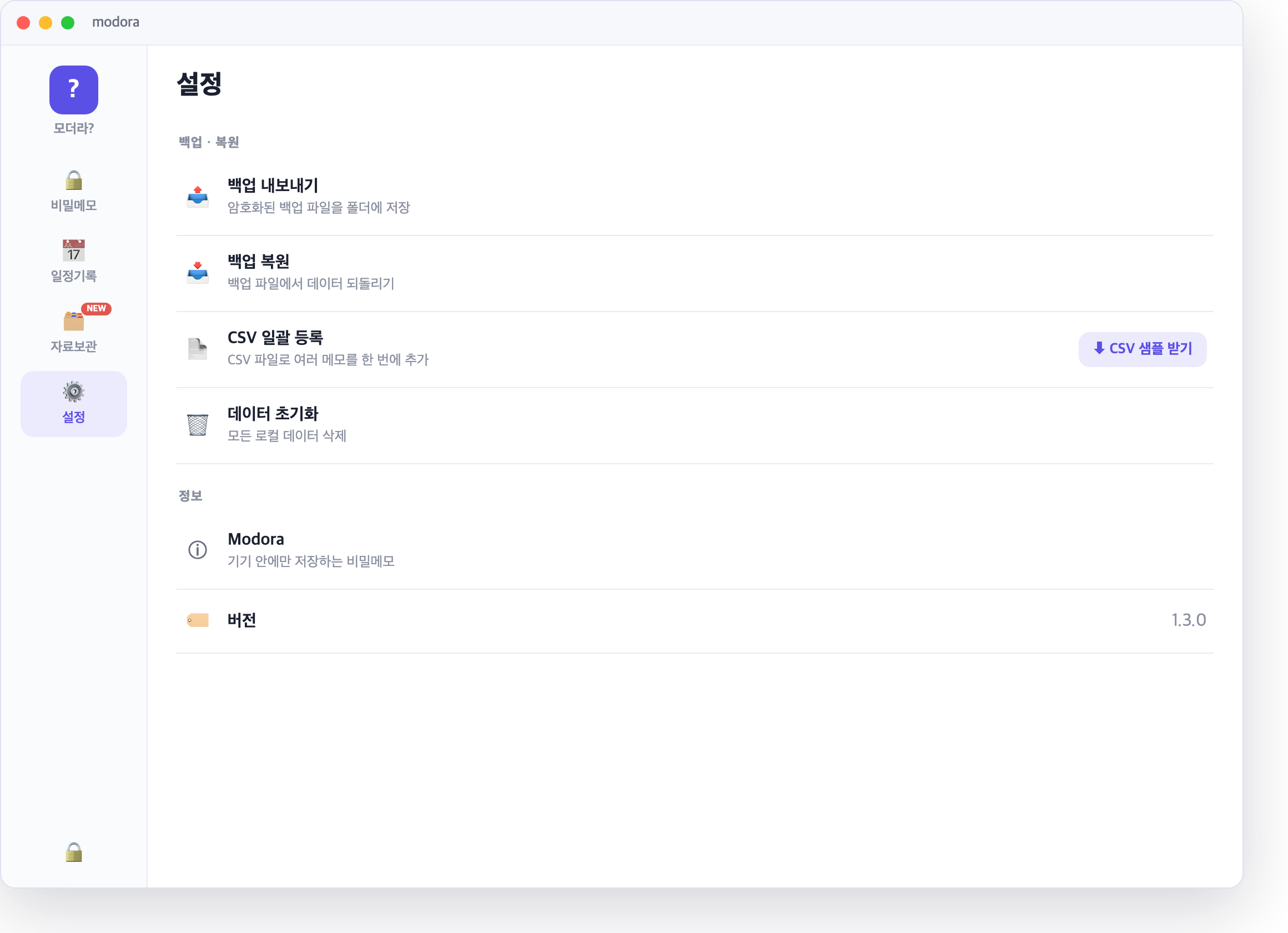
Modora CSV 샘플
3. Modora로 가져오기
- Modora 잠금 해제 → 설정 탭
- CSV 일괄 등록 클릭 → 준비한 CSV 파일 선택
- 가져오기가 끝나면 추가된 개수가 표시되고 비밀메모 목록에 나타납니다
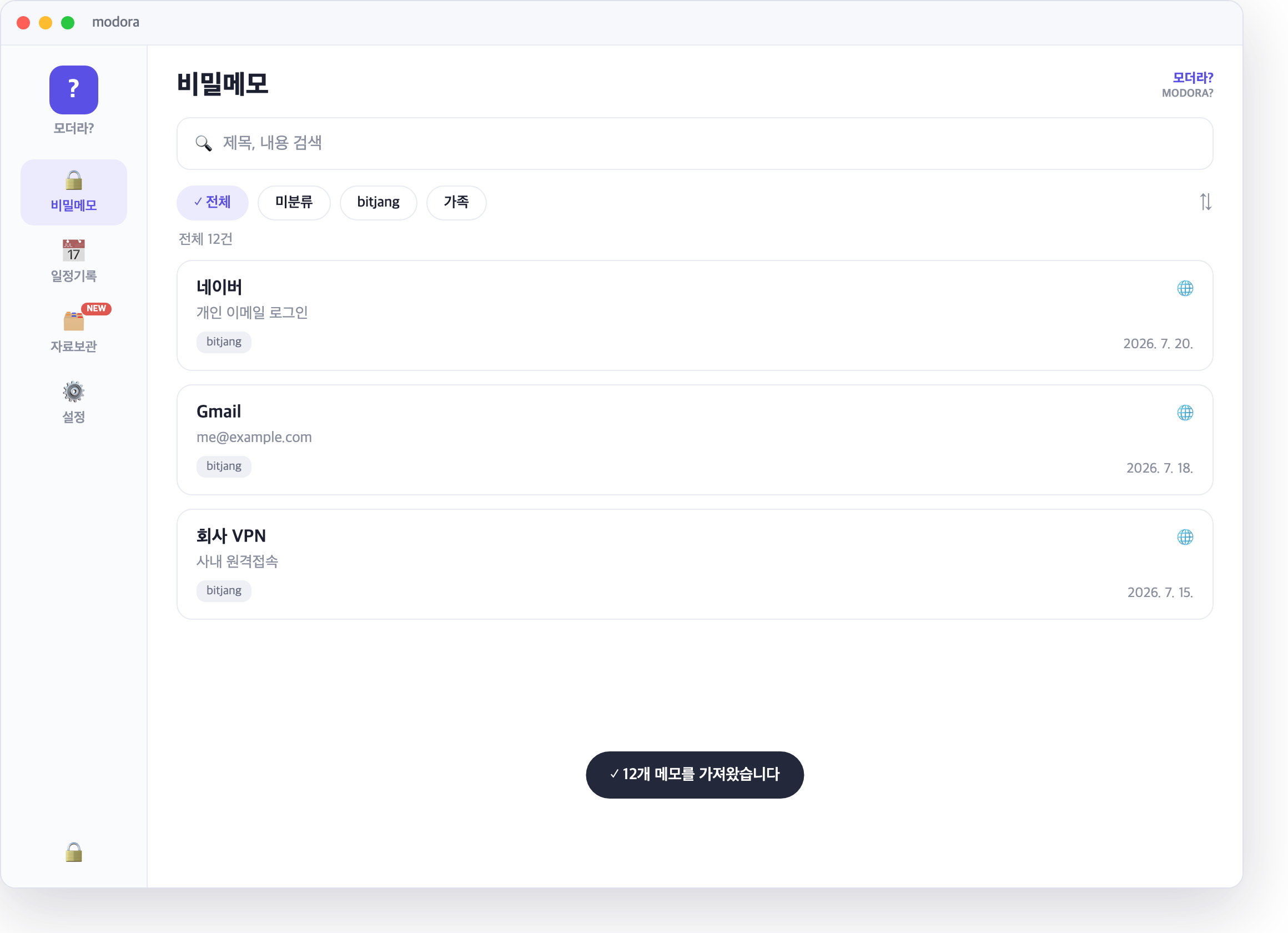
설정 → CSV 일괄 등록
4. 마무리 점검
- 내보냈던 브라우저 CSV 파일과 중간 작업 파일을 완전히 삭제
- 원하면 브라우저에 저장된 비밀번호를 정리하고, 이후에는 Modora에서 관리
- 백업 설정 확인 — 왜 로컬 저장인가에서 백업 방식을 소개합니다
Export browser passwords to CSV and import them into Modora
Export the passwords saved in Chrome, Edge or Safari as a CSV file, then bring them into Modora at once with CSV bulk import — handy when you'd rather not leave passwords in a synced browser account.
1. Export from your browser
Chrome
- Open
chrome://password-manager/settings(or Settings → Autofill → Google Password Manager → Settings) - Click Export passwords → confirm with your device password → save the CSV
Edge
- Settings → Profiles → Passwords (or Microsoft Wallet) → Settings
- Click Export passwords → save the CSV
Safari (macOS)
- Safari menu → Settings → Passwords (or System Settings → Passwords)
- Bottom of the list: ⋯ → Export All Passwords → save the CSV
2. Arrange columns for Modora
In Excel or any spreadsheet, rearrange the browser CSV columns into Modora's format — header on the first row, data from the second.
| Modora column | What to put | Browser CSV column |
|---|---|---|
| title | Site name | name |
| contents | URL, username, notes | url, username |
| pw | Password | password |
| date · year · kind · solar/lunar | (optional) for schedules — leave empty | — |
Save as UTF-8 ("CSV UTF-8" in Excel). You can download an example file in Modora: Settings → CSV bulk import → Get CSV sample.
Modora CSV sample
3. Import into Modora
- Unlock Modora → open the Settings tab
- Click CSV bulk import → choose your prepared CSV file
- When it finishes, the number of added items is shown and they appear in your memo list
Settings → CSV bulk import
4. Clean up
- Delete the exported CSV and any working copies completely
- Optionally clear the passwords saved in your browser and manage them in Modora from now on
- Check your backup settings — see Why local-first?
For more, read the user guide or ask in the product Q&A.